
As the world moves towards a more digital and tech-savvy era, coding has become an essential skill in every industry. One of the most popular coding languages is JavaScript, and many developers use Visual Studio Code as their code editor of choice. However, for beginners, running a JavaScript file in Visual Studio Code can be a daunting task.
If you’re new to coding or just starting with JavaScript, don’t worry! In this article, we’ll guide you through the steps to run a JS file in Visual Studio Code. We’ll cover everything from setting up your environment to executing your file. By the end of this guide, you’ll be able to confidently run your JavaScript files in Visual Studio Code without any trouble. So, let’s get started!
How to run a js file in Visual Studio Code?
- Open Visual Studio Code
- Create a new JavaScript file by selecting File > New File from the menu bar
- Type your JavaScript code into the file
- Save the file with a .js extension
- Press F5 to run the script
Alternatively, you can use the VS Code terminal to run JavaScript files. Simply open the terminal and type node path/file.js to execute the script.
| VS Code | Sublime Text |
|---|---|
| F5 to run the script | Ctrl + B to run the script |
| Terminal to execute the script | Command Palette to execute the script |
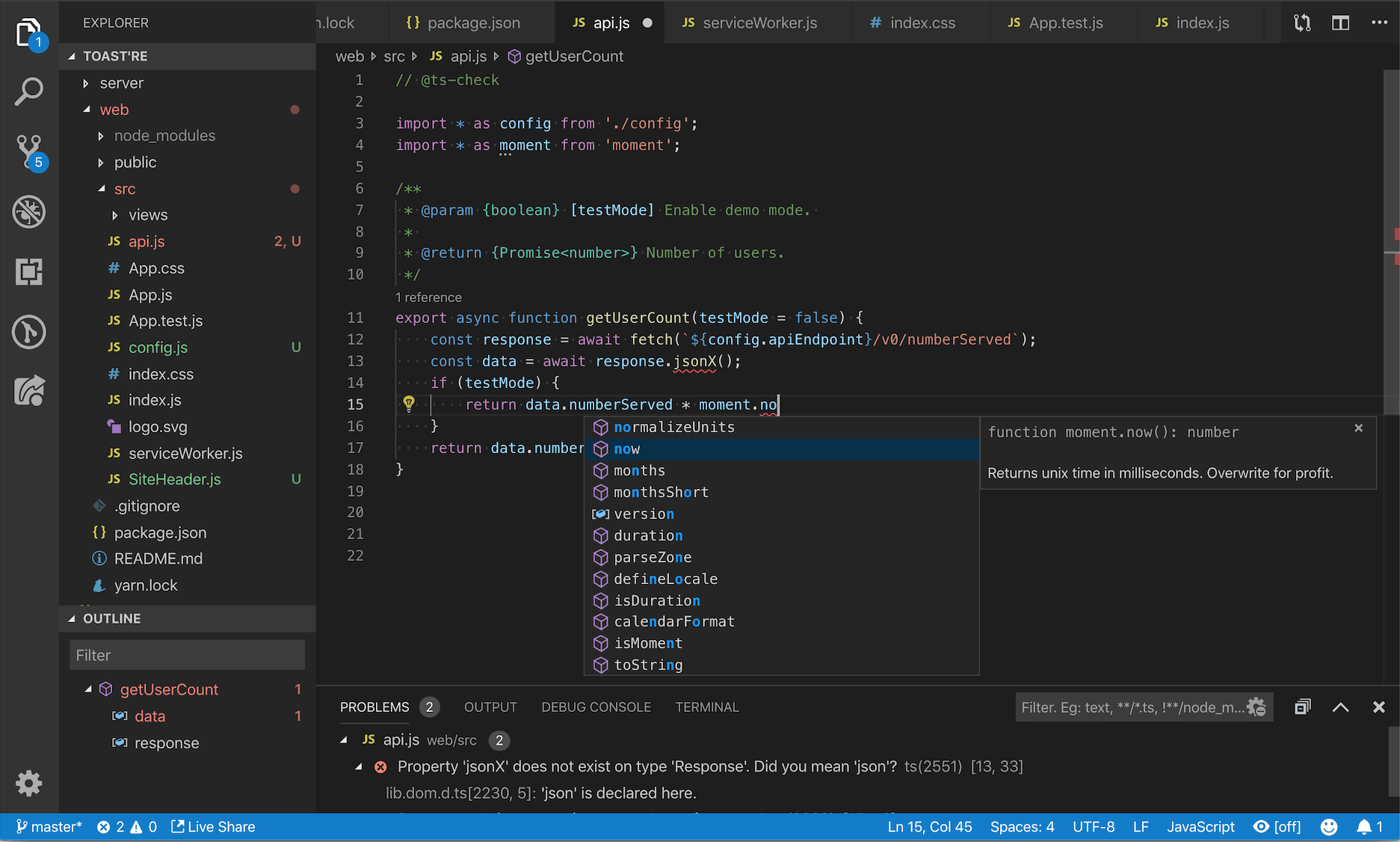
How to Run a JS File in Visual Studio Code?
Visual Studio Code (VS Code) is a popular code editor used by developers to write, debug, and deploy web applications. It is an open-source, cross-platform editor available for Windows, Mac, and Linux. The VS Code editor has many features to simplify the process of writing and running JavaScript code. In this article, we will discuss how to run a JS file in VS Code.
Step 1: Install the JavaScript Extension
The first step is to install the JavaScript extension in Visual Studio Code. This extension provides the necessary tools to develop and run JavaScript programs. To install the extension, open VS Code and click on the Extensions icon on the left sidebar. Then search for “JavaScript” and install the extension.
Once the extension is installed, you will be able to write and execute JavaScript code in Visual Studio Code. The extension also provides intellisense, which helps to identify errors in the code before execution.
Step 2: Open the File
The next step is to open the JS file in Visual Studio Code. To do this, open the VS Code application and click on the File menu. Then select Open File, and choose the JS file you want to run. The file will be opened in the VS Code editor.
Once the file is opened, you can make any changes to it as needed. You can also add comments to clarify any sections of the code or to explain the logic behind the code.
Step 3: Run the File
Once the file is opened in the editor, you can run the code by pressing the “Run” icon on the top of the screen. This will start the execution of the code and any output will be shown in the Output window. If there are any errors in the code, they will also be shown in the Output window.
You can also run the code from the command line by typing “node” followed by the name of the file. This will execute the code and any output will be shown in the terminal. This is an alternative way of running the code if you don’t want to use the Visual Studio Code editor.
Step 4: Debugging the File
The next step is to debug the code. To do this, open the file in the VS Code editor and click on the Debug icon on the top of the screen. This will open the Debug view in VS Code. You can then set breakpoints in the code and step through the code line-by-line to check for any errors.
The debug view also allows you to inspect the values of variables and objects while the code is running. This is a useful feature if you need to diagnose any errors in the code.
Step 5: Publish the File
The last step is to publish the code to a web server. To do this, open the file in the VS Code editor and click on the Publish icon on the top of the screen. This will open the Publish view in VS Code. You can then select the web server where you want to publish the code.
Once the code is published, it will be available on the web server and can be accessed by anyone with an Internet connection. This is a useful feature if you want to share your code with the world.
Frequently Asked Questions
This FAQ provides answers to commonly asked questions about running a JavaScript file in Visual Studio Code.
How do I run a JavaScript file in Visual Studio Code?
To run a JavaScript file in Visual Studio Code, open the file in the editor and press “F5” on the keyboard. This will run the JavaScript file in the integrated terminal. Alternatively, you can use the “Run” menu and select “Run Without Debugging”.
If you want to debug the JavaScript file, you can use the “Debug” menu in Visual Studio Code and select “Start Debugging”. This will open the debugger window and allow you to step through the code line-by-line. You can also use the debugger to set breakpoints and inspect variables.
How do I set up a project for JavaScript development in Visual Studio Code?
To set up a project for JavaScript development in Visual Studio Code, you will need to create a new workspace. From the “File” menu, select “Open Workspace” and choose the folder where your project will be located. This will create a new workspace in Visual Studio Code which will hold all the files related to your project.
Once the workspace has been created, you can add JavaScript files to it by opening the folder in Visual Studio Code and creating new files. You can also add existing JavaScript files to the workspace by dragging and dropping the file into the workspace window.
How do I debug JavaScript code in Visual Studio Code?
To debug JavaScript code in Visual Studio Code, open the code file in the editor and select the “Debug” menu. From here, select “Start Debugging” to open the debugger window. You can then step through the code line-by-line, set breakpoints, and inspect variables.
You can also use the debugger to set breakpoints and inspect variables. This will allow you to quickly identify errors in the code and make changes to the code before running it again.
How do I open the integrated terminal in Visual Studio Code?
To open the integrated terminal in Visual Studio Code, you can use the “View” menu and select “Integrated Terminal”. Alternatively, you can use the keyboard shortcut “Ctrl+`”. This will open the integrated terminal in Visual Studio Code where you can run commands and scripts.
You can also use the terminal to run a JavaScript file by typing “node
How do I add external libraries to a JavaScript project in Visual Studio Code?
To add external libraries to a JavaScript project in Visual Studio Code, you will need to install the library using the “npm” command line tool. To do this, open the integrated terminal in Visual Studio Code and type “npm install
You can also use the “npm” command line tool to update existing libraries in the project. To do this, open the integrated terminal in Visual Studio Code and type “npm update

How to run JavaScript on Visual Studio Code
In conclusion, running a JavaScript file in Visual Studio Code can seem like a daunting task, especially for beginners. However, with the right knowledge and tools, it can be a seamless process. By following the steps outlined in this guide, you should be able to run your JavaScript code in Visual Studio Code without any issues. Remember, it’s important to ensure that you have the necessary extensions and dependencies installed before attempting to run your code.
As a professional writer, I would like to emphasize the importance of staying up to date with the latest software updates and advancements in technology. By doing so, you can ensure that you are using the most efficient and effective tools to run your JavaScript code. It’s also essential to continue learning and improving your skills as a developer, as the world of technology is constantly evolving. With dedication and hard work, you can become a skilled JavaScript developer and make a significant impact in the tech industry.